Live Activities for your website: Google Analytics on the Lock Screen
How to put your GA4 real-time visitors on the iPhone Lock Screen and in the Dynamic Island, and keep them updating every minute.
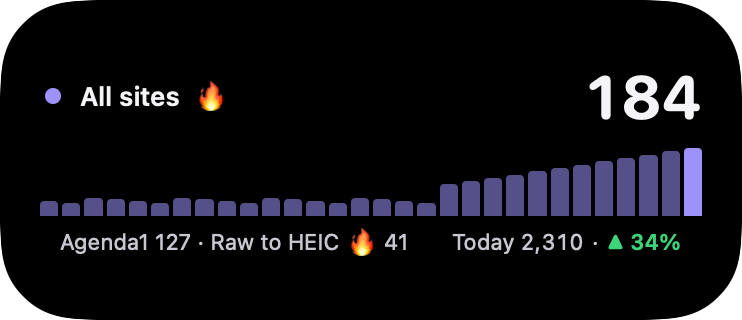
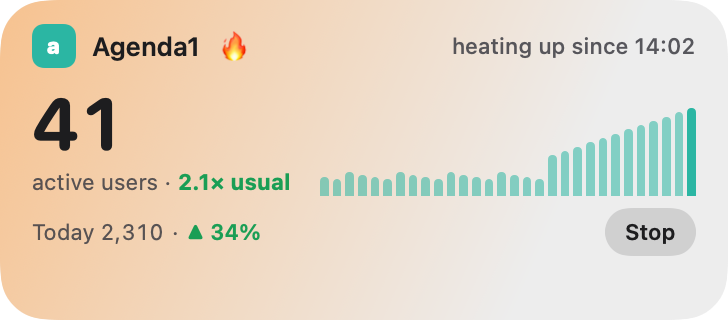
Google Analytics 4 has a Realtime report, but it lives in a browser tab you have to remember to open. A Live Activity turns it into something you see without trying: every time you pick up your iPhone, your visitors are there on the Lock Screen.
This guide covers what a Site Pulse Live Activity shows, how to start one, how to keep it updating every minute, and how to have it start by itself when one of your sites gets busy.
What a Live Activity shows
A Site Pulse Live Activity follows one website, or all of them together. On one card it shows:
- The people on your site right now, meaning everyone active in the last 30 minutes, the same window as GA4’s Realtime report.
- A bar for every minute of that half hour, so you can see a rise as it happens rather than after the fact.
- Today against yesterday at the same time of day, written as “Today 2,310 · ▲ 12%”.
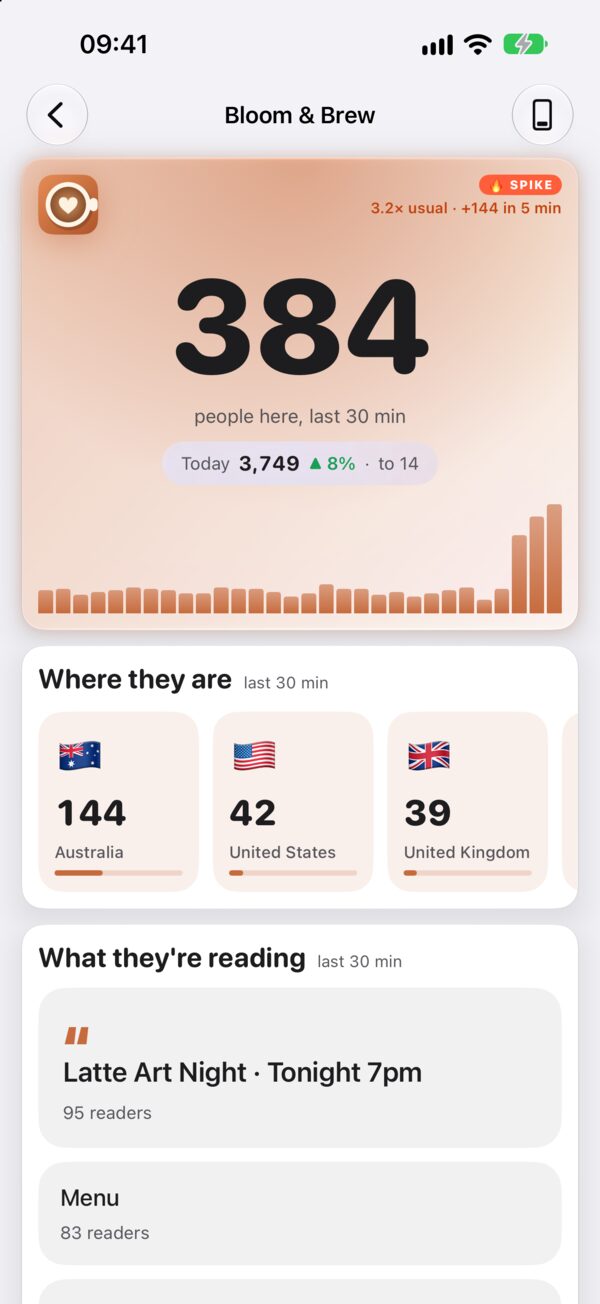
- Your top country and top page at this moment: where the crowd is, and what it’s reading.
- Spike details when a site is busier than usual, such as “2.1× usual · +38 in 5 min”.
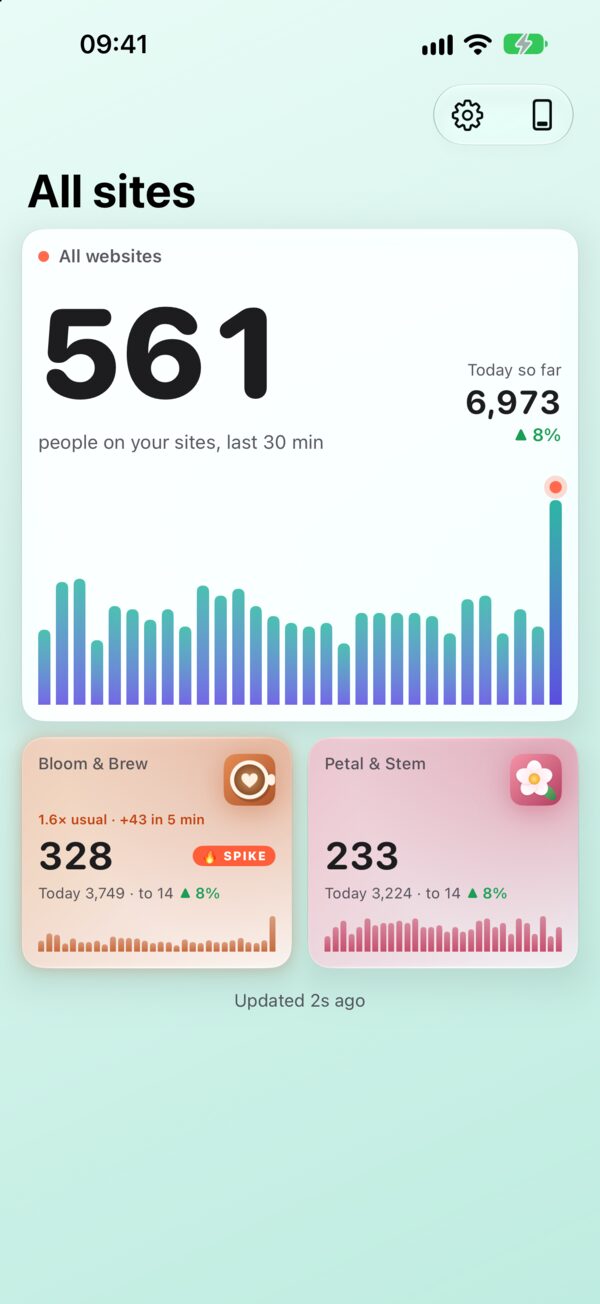
Follow All sites and the card shows your total, with a chip for up to three sites. The spiking ones come first, and “+ N more” stands for the rest.
Where it appears
Once it’s running, the same Live Activity turns up wherever you glance:
- On the Lock Screen of your iPhone or iPad, as the full card.
- In the Dynamic Island on iPhones that have one, in its compact, minimal and expanded forms.
- In StandBy, big and readable while your iPhone charges on its side.
- In the Smart Stack on Apple Watch.
- On the CarPlay Dashboard.
Set it up in four steps
- Install Site Pulse on your iPhone. It runs on iOS 26 and later, and you can join the TestFlight beta today.
- Connect Google. In Settings, tap Add Google Account. Site Pulse asks for read-only access to Analytics, so it can never change anything in your account.
- Choose your sites. Pick the GA4 properties to watch and give each one a short name. Its colour comes from the website’s icon, or you can pick your own.
- Start the Live Activity. Tap Start Live Activity on the dashboard to follow all your sites, or open one site and tap the Live Activity button in its toolbar to follow just that one.
Keep it updating every minute
A Live Activity has to keep going while the app is closed, and an iPhone app can’t simply run in the background all day. So Site Pulse’s server reads your live numbers from Google once a minute and sends them to your Live Activity through Apple.
iOS can slow those updates down to save battery. If the card says “Updates slowed by iOS”, open the Settings app, tap Site Pulse, then Live Activities, and turn on More Frequent Updates.
The status line always tells you how fresh the numbers are, so you never trust a stale one:
- live · 14:32 means it’s updating.
- paused · last update 14:32 means the numbers are from 14:32.
- paused · reconnect in Site Pulse means you should open the app and reconnect the account.
- Updates slowed by iOS means you should turn on More Frequent Updates.
- ended 14:32 means the Live Activity has ended: iOS ends them after eight hours, or you stopped it.
iOS ends every Live Activity after eight hours. That’s a system rule, not a setting, so start a new one whenever you like.
Start one when a site spikes
You don’t have to remember to start a Live Activity at all. In Settings, turn on “Start a Live Activity when a site spikes”. From then on Site Pulse starts one for you, with a sound and a banner, even while the app is closed.
A spike is measured against each site’s own normal. Site Pulse learns what’s usual for every hour of the day, then compares the last five minutes with it. When a site runs at 1.5 times its usual traffic or more, with at least ten more people than usual, it counts as a spike. A quiet blog and a busy shop each get alerts that make sense for them.
If you’d rather choose for yourself, turn on spike notifications instead (they’re off until you do) and tap one to start a Live Activity for that site.
What the server keeps
To send those updates, the server keeps two things: your Google account ID (never your email address) and an encrypted, read-only permission to read your Analytics. You can remove both at any time with Delete my Live Activity data in Settings. If you stop using Live Activities, they are deleted after 30 days.
Everything else in Site Pulse talks to Google directly. The privacy policy has the details, and the Live Activities page shows every layout.
Questions
Can one Live Activity follow several websites?
Yes. Choose All sites and you get your total plus a chip for up to three sites, the spiking ones first, and “+ N more” for the rest.
How does it update while Site Pulse is closed?
Updates arrive through Apple’s push service while the app is closed; iOS decides how often they’re shown.
Do I need Site Pulse Pro?
Not to try it: the demo sites’ Live Activity is free. Live Activities for your own websites are part of Site Pulse Pro.
Why did my Live Activity end?
iOS ends every Live Activity after eight hours. Start a new one, or turn on Start a Live Activity when a site spikes so Site Pulse starts one for you next time.
 RawToHEIC
  MergeHDR
  Filters
  Photo Geotag
  Copyrighted
  Camera Grid
  Photo Tape