How to see Google Analytics real-time on your iPhone
The GA4 Realtime report, made glanceable: a live number, a Lock Screen card and a nudge when it jumps.
Something just went out: a newsletter, a post, a mention by someone with a big following. The obvious question is whether anyone is coming, and you want the answer on the phone in your hand, not later at a desk.
Google Analytics 4 can tell you, because it keeps a live view of the last half hour. This guide covers where that view lives and how to see it on an iPhone, from opening a report to having the number find you.
What “real-time” means in GA4
GA4’s Realtime report shows activity from the last 30 minutes. Its headline figure is the number of active users in that window, with a small bar chart that splits the half hour into minutes. Below it, cards break the same window down by country, by page, by event and by where the visitors came from.
Two things are worth knowing before you rely on it:
- It is a rolling window. The number counts people active at any point in the last 30 minutes, so it rises quickly when a crowd arrives and falls gently as they leave.
- It is not “today”. A day total and a live number answer different questions. A good live view shows both side by side.
If you want the full story behind the figure, our explainer on what “active users in the last 30 minutes” means goes deeper.
Option 1: open the Realtime report
The simplest route is to open Google Analytics itself. Google has an official Google Analytics app for iPhone, and the web version works in Safari. In either, pick your property and open Realtime.
This works well when you want to dig: filter by a page, compare traffic sources, look at a single event. It works less well as a habit. Each check means unlocking the phone, opening the app, choosing the property and waiting for the report, and if you look after several websites you do that once per site.
Option 2: a live dashboard for every site
Site Pulse for iPhone reads the same GA4 data and puts every site you choose on one screen. Here is how to set it up:
- Install Site Pulse on an iPhone with iOS 26 or later. You can join the TestFlight beta now.
- Add a Google account in Settings. Site Pulse asks for read-only access, so it can look but never change anything. Add more accounts if your sites live in different ones.
- Choose your GA4 properties and give each a short name. Its colour comes from the website’s own icon, or you can pick one.
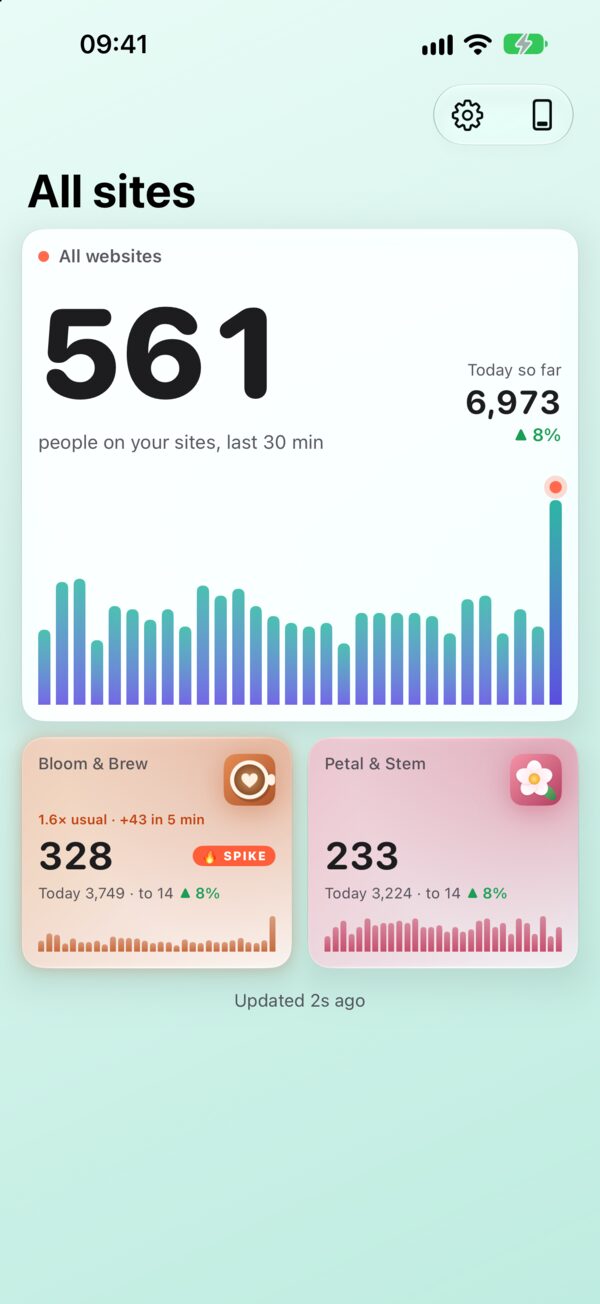
The dashboard then shows everyone on your sites in the last 30 minutes, a bar for every minute, and today so far against yesterday at the same time. While you’re looking, the live numbers refresh every minute.
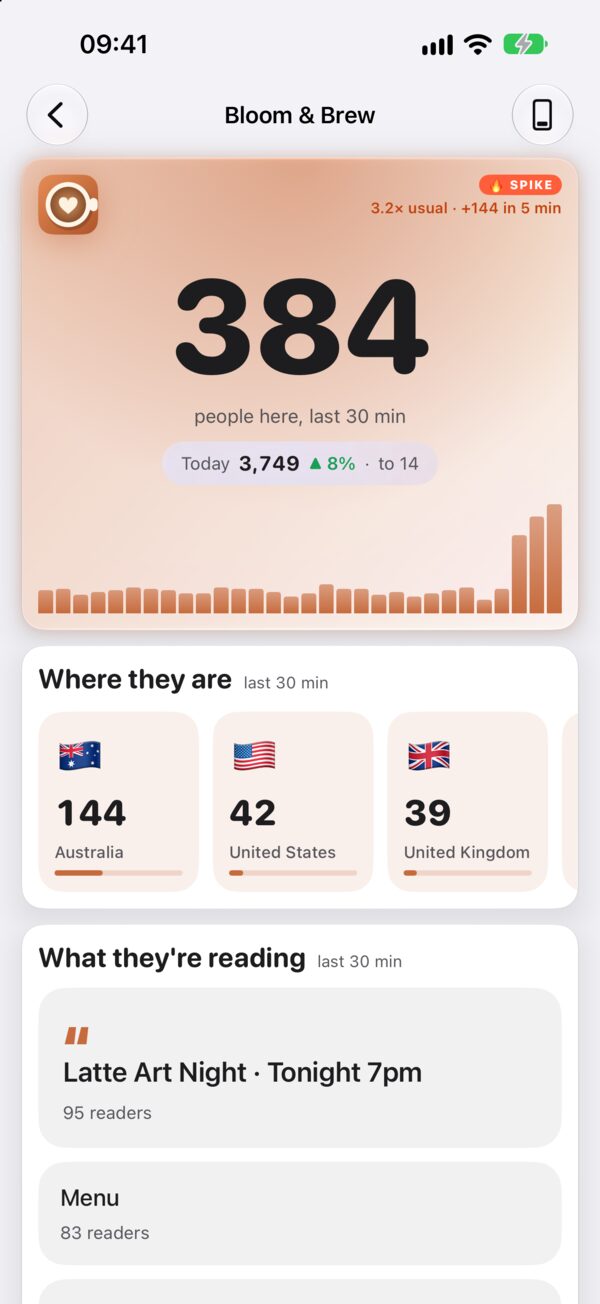
Tap a site for its live room. It answers four questions: where the visitors are (countries, then the cities inside them), what they’re reading (your top pages), what they’re on (mobile, desktop and tablet, as a ring) and what they do (your GA4 events as they come in).
Option 3: let the number come to you
The real change is not having to open anything. Site Pulse puts your live number where you already look:
- Home Screen widgets. Pulse shows the people on your sites right now; others show this month’s pace, a calendar heatmap or a monthly report. See all the widgets.
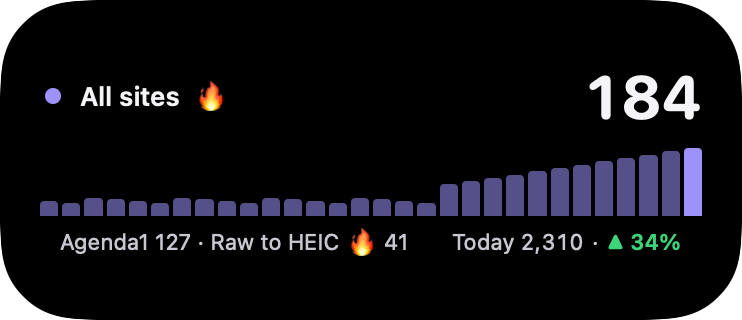
- Lock Screen widgets. Six small ones, from “485 live · 6,942 today” in a single line to a bar for each of the last 30 minutes.
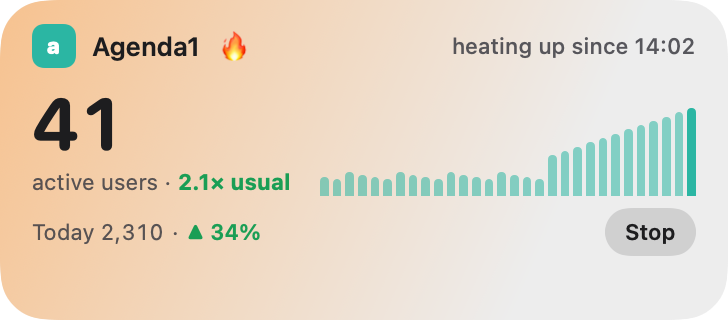
- A Live Activity. A card on the Lock Screen and in the Dynamic Island that updates every minute, even while the app is closed. Our Live Activities page shows every layout.
- Siri. Ask “How are my websites in Site Pulse?” and hear now, today and this month, hands-free in CarPlay or on AirPods.
A built-in guide called Site Pulse Everywhere walks you through each of these places and ticks them off as you go: the Home Screen, the Lock Screen, a Live Activity, Apple Watch, CarPlay and Siri.
Get a nudge when it jumps
Watching is optional if something tells you when to look. Site Pulse learns what’s normal for each site at each hour, and when the last five minutes run at 1.5 times the usual or more, with at least ten more people than usual, the site’s tile glows with a SPIKE badge.
Turn on spike notifications (they’re off by default) and you’ll get a banner such as “3.3× usual · +155 in 5 min”. Tap it to start a Live Activity for that site and follow the rush from the Lock Screen, or turn on “Start a Live Activity when a site spikes” and Site Pulse starts one for you, even while the app is closed.
Which option to use
Use the Realtime report when you need to investigate: a source, a campaign, a filtered view. Use a live dashboard, widgets and a Live Activity when you simply want to know, all day, without thinking about it. Most site owners end up doing both: glancing all the time, digging only when the glance says something is happening.
Questions
Does it work with Universal Analytics?
No. Site Pulse reads Google Analytics 4 properties, the current version of Google Analytics.
How often do the numbers update?
Every minute while you’re looking, and every five minutes when nothing is on screen. A Live Activity updates every minute even while the app is closed.
Can I watch sites from several Google accounts?
Yes. Add as many Google accounts as you like, then choose which GA4 properties to watch and give each a short name and colour.
 RawToHEIC
  MergeHDR
  Filters
  Photo Geotag
  Copyrighted
  Camera Grid
  Photo Tape