Reading a traffic spike: what to check in the first ten minutes
Where they are from, what they are reading, and what to do while the crowd is still there.
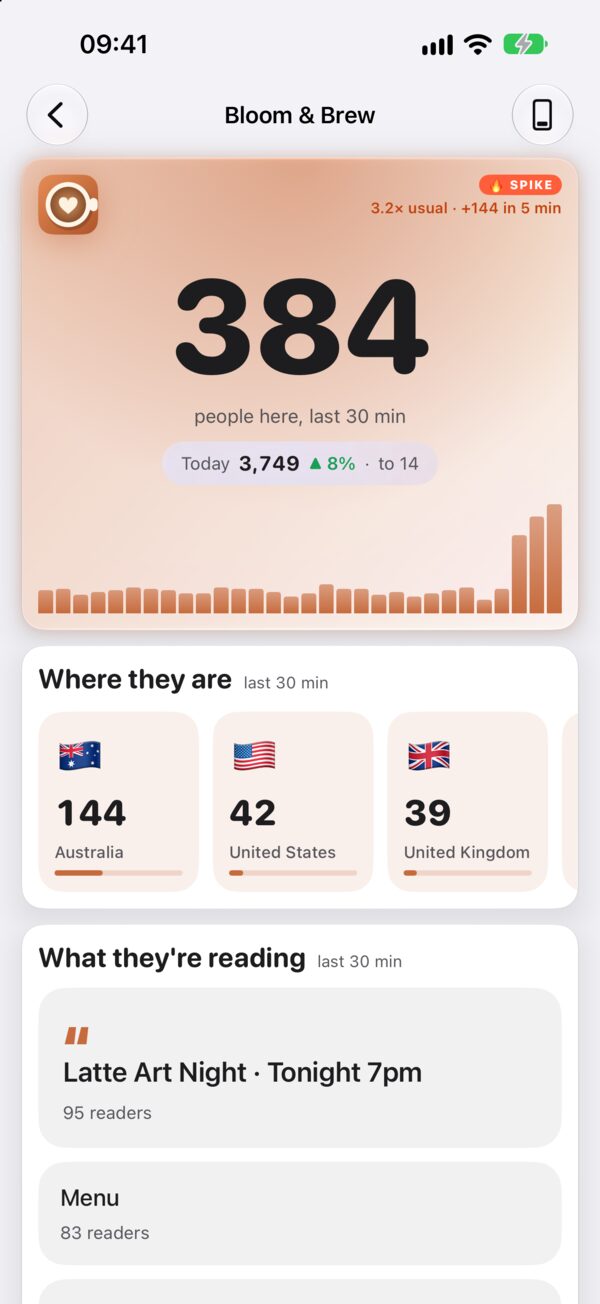
The number jumps. Your site normally has a dozen people on it at this hour, and now it has a hundred. The first ten minutes of a spike are the most valuable ones: the visitors are still on the page, whatever sent them is still fresh, and small fixes still reach a lot of people.
This is a short checklist for those ten minutes. It uses Site Pulse because that is where the alert usually comes from, but every question can also be answered in GA4’s Realtime report.
What counts as a spike
“A lot of traffic” means different things for a personal blog and a busy shop, so Site Pulse measures each site against itself. Every six hours it learns the site’s usual traffic for each hour of the day from Google Analytics. Then it compares the last five minutes with that usual figure.
A site is spiking when the last five minutes run at 1.5 times its usual or more, and with at least ten more people than usual. The second condition keeps a quiet site from raising alarms over a handful of visitors at 3 am.
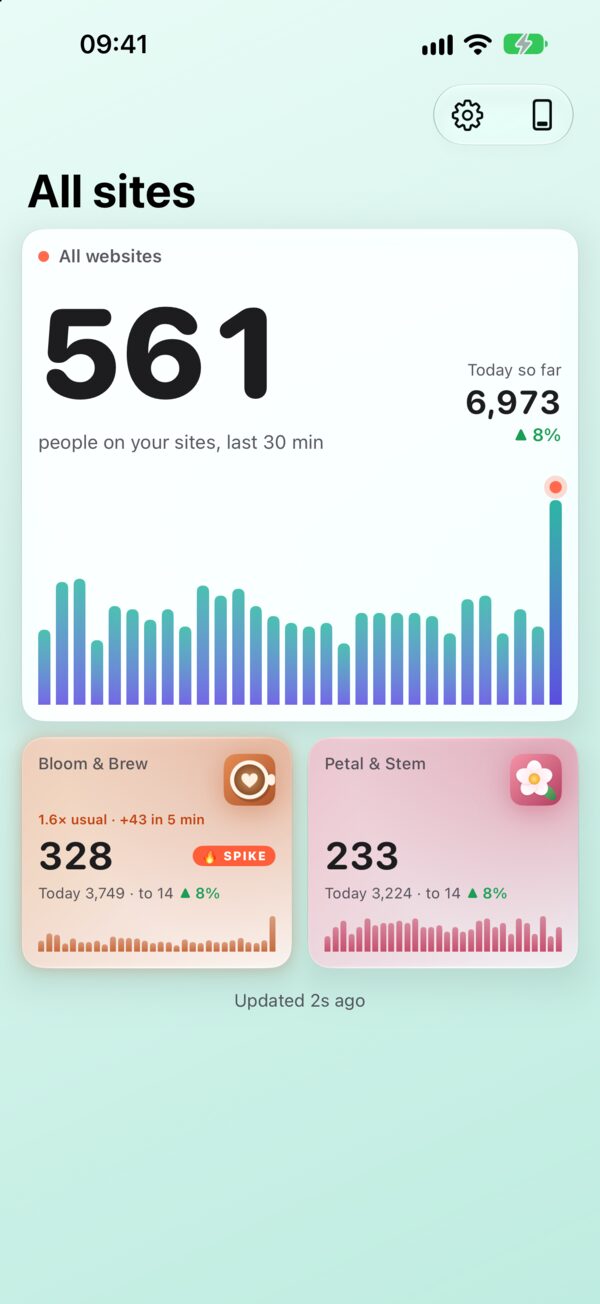
When it happens, the site’s tile glows with a SPIKE badge and a line such as “3.3× usual · +155 in 5 min”: how many times the usual, and how many extra people in five minutes.
Minutes 0–2: is it real?
Before you act, make sure you are looking at people.
- Look at the minute bars. A crowd arriving from a share or a newsletter usually builds over several minutes. A single tall bar that drops straight back usually means one link sent a burst of visitors who left quickly.
- Check the device ring. Open the site and look at On what. A sudden mix that is nothing like your normal one is worth noticing.
- Check the events. Under What they do, real readers produce a spread of events: scrolls, clicks, sign-ups. A flood of one event and nothing else deserves a closer look.
Most spikes pass this test in seconds. Google Analytics already filters known bots, so what reaches your live number is mostly people.
Minutes 2–5: find the page and the place
Open the site in Site Pulse. Its live room answers the two questions that explain most spikes.
What are they reading? Your top pages are listed with how many people are on each. If one page is suddenly far ahead of the rest, that page is the reason. It tells you what was shared, even before you know where.
Where are they? Countries come first, then the cities inside each one. A spike concentrated in one city often points to something local: a mention in local news, a community group, an event nearby. A spike spread across many countries usually means something travelled further.
Minutes 5–10: act while they are there
Once you know which page is busy, make it count. Pick the actions that fit your site:
- Open the page yourself, on a phone, since many shared links are opened on one. Check it loads, the images appear and nothing is broken.
- Give visitors a next step. Add a line pointing to a related page, your newsletter sign-up or the product the article mentions.
- Check that the shop can cope. If the page sells something, make sure stock, booking slots or the checkout are ready for more orders.
- Join the conversation. If you found where it was shared, reply there or thank the person who shared it, while the thread is still active.
- Watch the events. What they do shows your GA4 events as they come in. Sign-ups and orders tell you whether the crowd is converting, not just reading.
Keep it in view
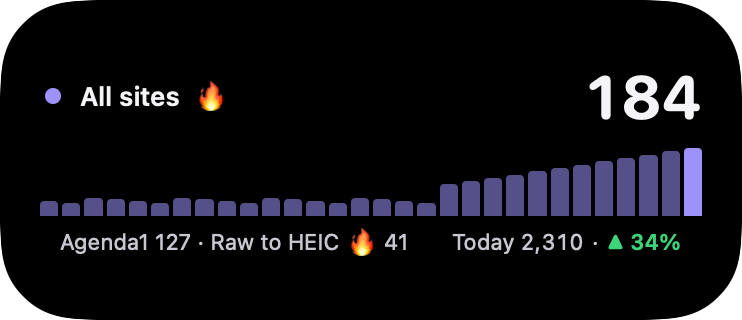
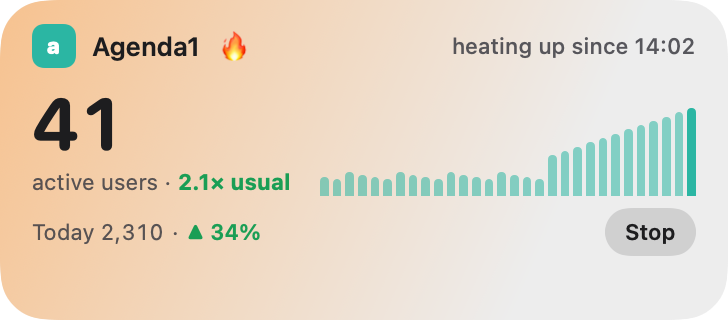
A spike can last minutes or hours. Rather than refreshing a report, start a Live Activity for the site: tap the spike notification, or turn on “Start a Live Activity when a site spikes” and Site Pulse starts one by itself. The Lock Screen then shows the live count, a bar for every minute and the spike details, updated every minute.
On a Mac, the menu bar count gives a little bounce when a site spikes. On an Apple TV, the optional spike takeover turns the whole screen warm for two minutes, so the people in the room know too.
Afterwards
When the bars settle, write down what happened: the page, the place, the source and what you changed. Over a few spikes a pattern appears, such as the kind of post that travels, or the day your newsletter lands best. With Site Pulse Pro, the Highlights widget shows rotating facts such as your best day, recent spikes, streaks and new countries. See every spike alert option, or join the TestFlight beta to get them on your own sites.
Questions
Why didn’t I get a notification?
Spike notifications are off by default. Turn them on in Site Pulse’s settings; the tile on the dashboard glows either way.
My traffic looked high but no spike was flagged. Why?
A spike needs both conditions: the last five minutes at 1.5 times the usual for that hour or more, and at least ten more people than usual. A busy hour that is busy every day is normal for that site, so it isn’t flagged.
Can the whole team see it?
Put Site Pulse on an Apple TV and everyone in the room can see it. Turn on the spike takeover and the screen turns warm for two minutes when a site spikes. It’s off by default.
 RawToHEIC
  MergeHDR
  Filters
  Photo Geotag
  Copyrighted
  Camera Grid
  Photo Tape