Put your website traffic on the office TV
Pair Apple TV with a QR code, choose the World tour, and let Ambient mode take over when nobody is watching.
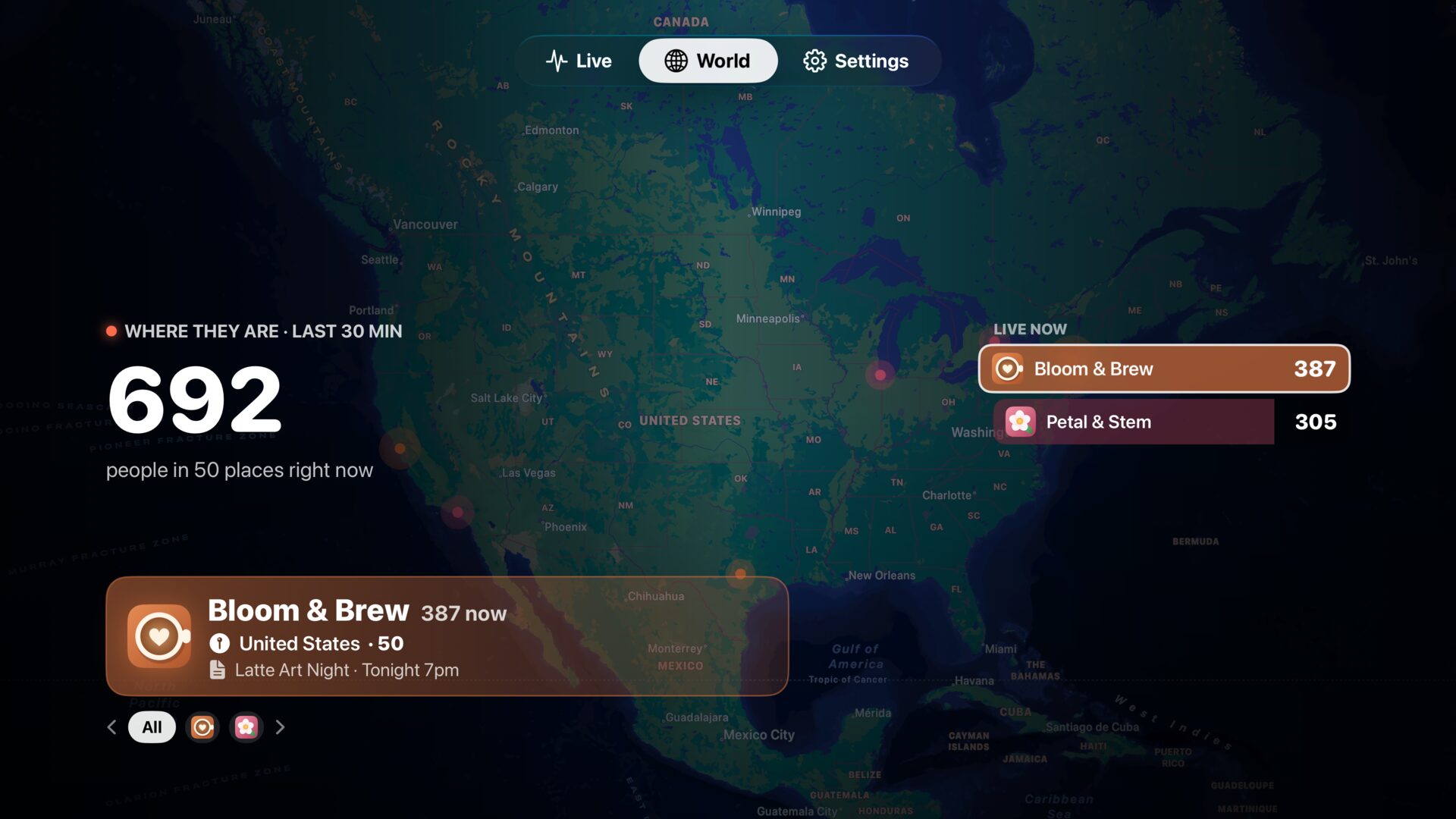
A number on your phone is for you. A number on the wall is for everyone. Put your live visitors on the office TV, the café screen or the studio wall, and the whole team sees the launch land, the newsletter go out or the evening rush arrive, as it happens.
Here is how to set up Site Pulse on Apple TV and make it look good from across the room.
What you need
- An Apple TV running tvOS 26.
- Site Pulse on an iPhone, signed in to the Google accounts with your GA4 properties. The iPhone is what signs the TV in.
- Both on the same local network for the pairing step.
If you haven’t set up Site Pulse yet, join the TestFlight beta, add your Google account on the iPhone and choose your sites first.
Pair with a QR code
Typing a Google password with a TV remote is nobody’s idea of fun, so you don’t.
- Open Site Pulse on the Apple TV and go to the Settings tab. The TV shows a QR code.
- Scan the code with Site Pulse on your iPhone.
- Your accounts move across your local network to the TV, encrypted, with no server in between.
That’s it. The TV now shows the same sites as your iPhone, with the same names and colours.
Choose Live or World
Site Pulse on Apple TV has three tabs: Live, World and Settings. The first two are the ones you’ll leave on screen.
Live is the live room. It shows the big number of people on your sites, today and its pace, a skyline of the last 30 minutes, a “Right now” column with the top places and the most-read pages, and a card for every site. It suits a desk or a meeting room, where people glance at it up close.
World is the one for the wall. On All sites, the map tours from site to site with a leaderboard; pick one site to see its cities, countries and pages. It suits a café, a shop window or the wall at the end of the office.
Let the room feel a spike
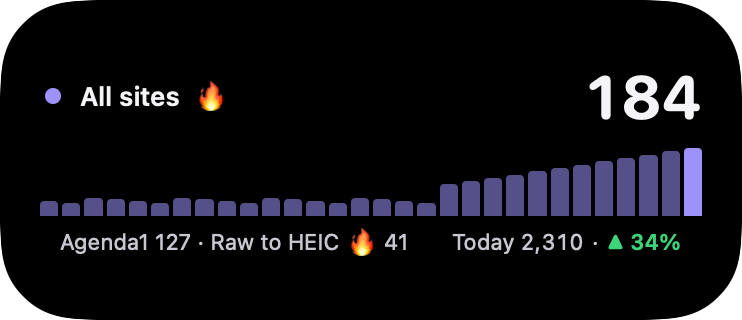
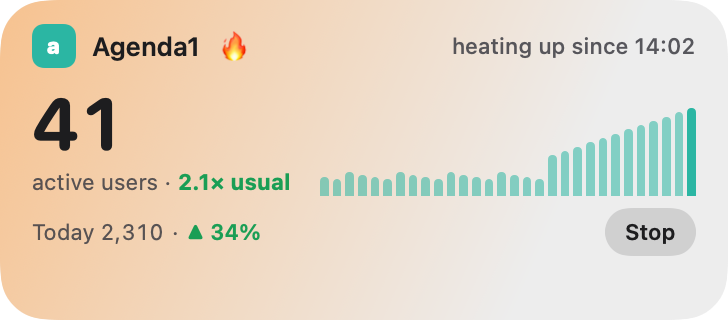
Site Pulse learns what’s usual for each site at each hour, and treats the last five minutes running at 1.5 times the usual or more, with at least ten more people than usual, as a spike.
On Apple TV you can make that visible to everyone. Turn on the spike takeover and, when a site spikes, the whole screen turns warm for two minutes. It’s off by default, so a TV in a quiet corner never surprises anyone.
Leave it on all day
A screen that shows the same thing for hours needs to look after itself. After ten minutes without the remote, Site Pulse switches to Ambient: it dims to a quiet number that slowly drifts around the screen, so nothing burns in. Pick up the remote and the full view is back.
Put Site Pulse in the top row of the Apple TV Home screen, too. Its Top Shelf shows your numbers before you even open the app.
Practical tips for the wall
- Check the view from the back of the room. World and the big Live number are easy to read from a distance; if the room is small, Live gives more detail.
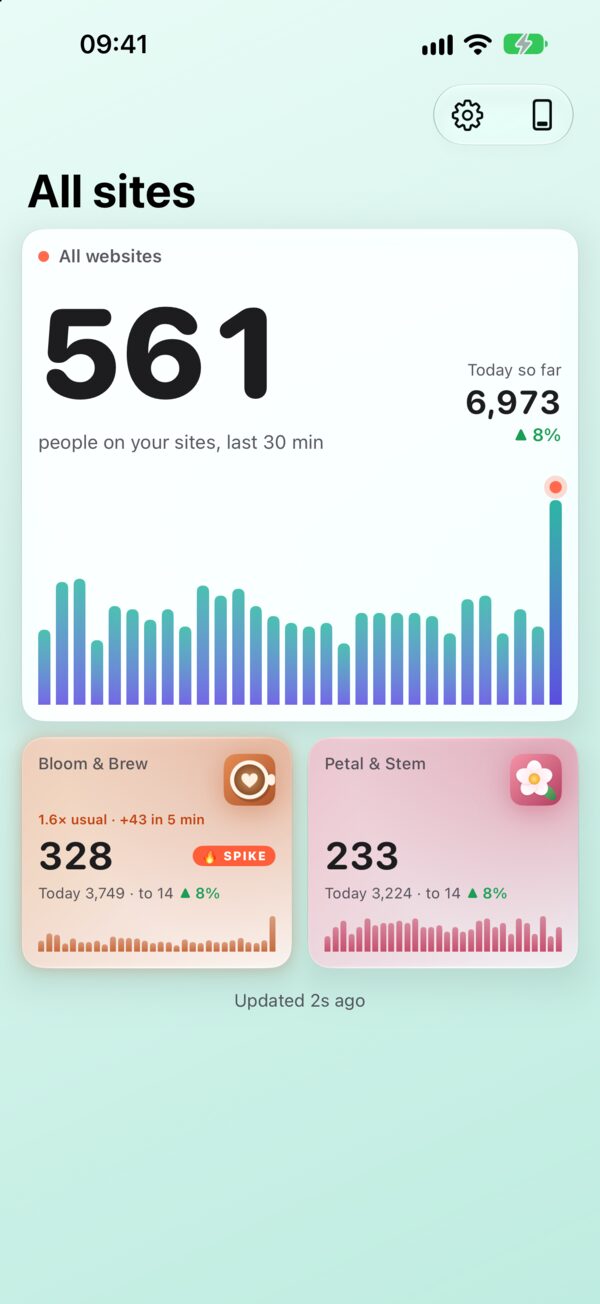
- Keep the demo sites off a public screen. Bloom & Brew and Petal & Stem are switched on by default to show how things work. Turn them off once your own sites are connected.
- Think about what the screen shows. Site Pulse shows counts, places and page titles, never who your visitors are. Still, if a page title is private, say an unannounced product, consider which screen it appears on.
For the rest of the house, the same numbers live on iPhone, Mac and Apple Watch.
Questions
Can I leave it on all day?
Yes. After ten minutes without the remote, Ambient mode dims the screen and keeps the numbers drifting slowly, so nothing burns in.
Do I need to type a password with the remote?
No. The TV shows a QR code; scan it with Site Pulse on your iPhone and your accounts are copied across your local network, encrypted, with no server in between.
Which Apple TV do I need?
An Apple TV that runs tvOS 26.
 RawToHEIC
  MergeHDR
  Filters
  Photo Geotag
  Copyrighted
  Camera Grid
  Photo Tape