What “active users in the last 30 minutes” means in GA4
Why the live number covers half an hour, why the minute bars add up to more than the total, and why it never quite matches other tools.
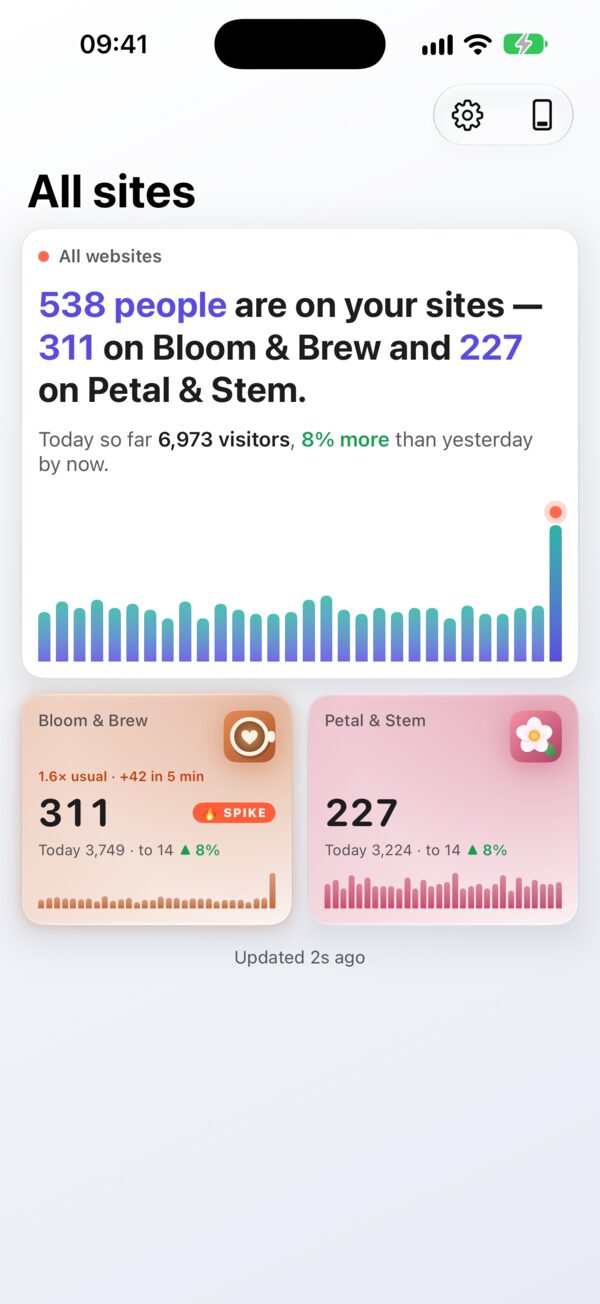
Open GA4’s Realtime report and the biggest number on the page is the count of active users in the last 30 minutes. Site Pulse shows the same figure as “people on your sites, last 30 min”. It looks simple, but it answers a narrower question than most people assume, and knowing exactly what it counts makes it far more useful.
What the number counts
In GA4’s real-time view, a user counts as active when Analytics has received activity from them during the window: a page view, a scroll, a click, any event your site sends. Each person is counted once, however many pages they open.
“Person” here means what Analytics can recognise. On a website that is usually a browser on a device. The same reader on a phone and a laptop usually counts as two users, unless your property links them, for example with User-ID; two people sharing one browser count as one.
Why half an hour
A live count needs a window, and the window decides how the number behaves. A one-minute window would flicker: every reader who paused to read a long paragraph would vanish and reappear. A whole-day window would barely move. Thirty minutes sits in between. It is long enough to hold someone who is reading, and short enough to react when a crowd arrives.
Google’s real-time reporting is built around that same half hour, which is why the live number in Site Pulse, on a widget or in a Live Activity always means the last 30 minutes.
Why the minute bars add up to more
Under the number there is usually a bar chart with one bar per minute. It is tempting to add the bars up and expect the total. They will almost always come to more.
Each bar counts the users active in that minute. A minute’s bar includes a reader only if their events arrive in that minute, so a reader who keeps interacting across several minutes appears in several bars, but only once in the 30-minute total. The bars show the shape of your traffic. The big number shows how many different people made it.
Why it never quite matches other tools
Put the live number next to your hosting dashboard, a server log or another analytics tool and they will disagree. Usually nothing is broken; they are counting different things.
- Different units. Users, sessions and page views are not interchangeable. One person reading five pages is one user, one session and five page views.
- Different windows. A tool that shows “visitors now” over five minutes will show a smaller number than one using 30.
- Visitors Analytics never sees. Analytics only counts browsers that load its tag and are allowed to send data. Content blockers, declined consent banners and some privacy settings keep people out of the count. A server log sees every request, including those visitors and a good share of bots.
- Bots and crawlers. Google Analytics excludes known bots and spiders automatically, so server-side numbers are usually higher.
- Time zones. “Today” runs from midnight in the property’s time zone. If your other tool uses a different one, the day totals will drift apart even when the live numbers agree.
The practical rule: compare a number with itself over time, not with a different tool’s number. The live figure is excellent at telling you that more people are here than an hour ago. It is not an exact headcount of everyone who touched your server.
How to read it well
A live number on its own is hard to judge. Is 40 a lot? It depends on the site and on the hour. Three habits help:
- Compare with the same time yesterday. Site Pulse shows today so far against yesterday by the same time, so a Tuesday morning is measured against a Monday morning, not against a whole day.
- Compare with what’s usual for this hour. Site Pulse learns each site’s usual traffic for every hour of the day and refreshes that baseline every six hours. A spike means the last five minutes ran at 1.5 times the usual or more, with at least ten more people than usual.
- Look at the pages, not just the total. A jump that is all on one page has a cause you can find. Open the site in Site Pulse to see what people are reading and where they are.
Where to watch it
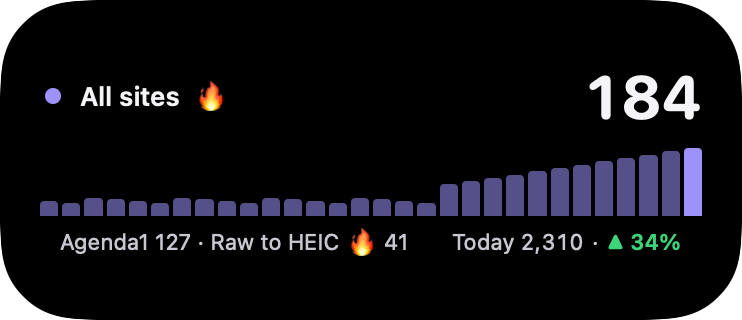
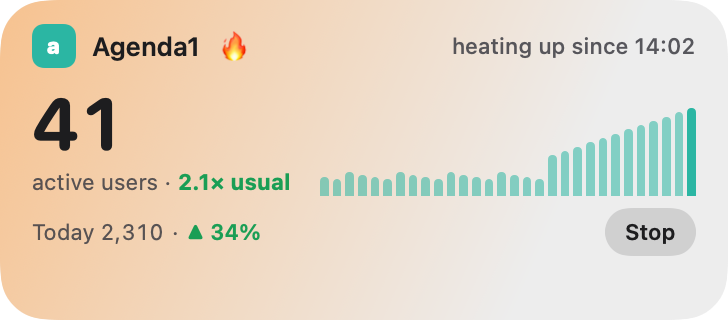
You can always open the Realtime report in Google Analytics. If you want the number without opening anything, Site Pulse puts it on the iPhone Home Screen and Lock Screen, in the Mac menu bar and in a Live Activity that updates every minute. It reads your GA4 data with read-only access, and you can join the TestFlight beta to try it.
Questions
Is it the same as “users today”?
No. Today counts everyone since midnight in the property’s time zone; the live number counts only the last 30 minutes. Read them together: the live number tells you what’s happening, today tells you how it’s adding up.
Why did the number keep falling after my post went out?
Because the window rolls. Once new arrivals slow down, each minute that leaves the window takes its visitors with it, so the number eases down for up to half an hour after the peak.
Why can two live views of the same property differ slightly?
They may have been read a few seconds apart. Site Pulse refreshes its live numbers every minute while you’re looking, so a report opened at another moment can be a minute ahead or behind.
 RawToHEIC
  MergeHDR
  Filters
  Photo Geotag
  Copyrighted
  Camera Grid
  Photo Tape