Google Analytics in your Mac menu bar
Set up Site Pulse on the Mac, launch it at login, and add desktop widgets.
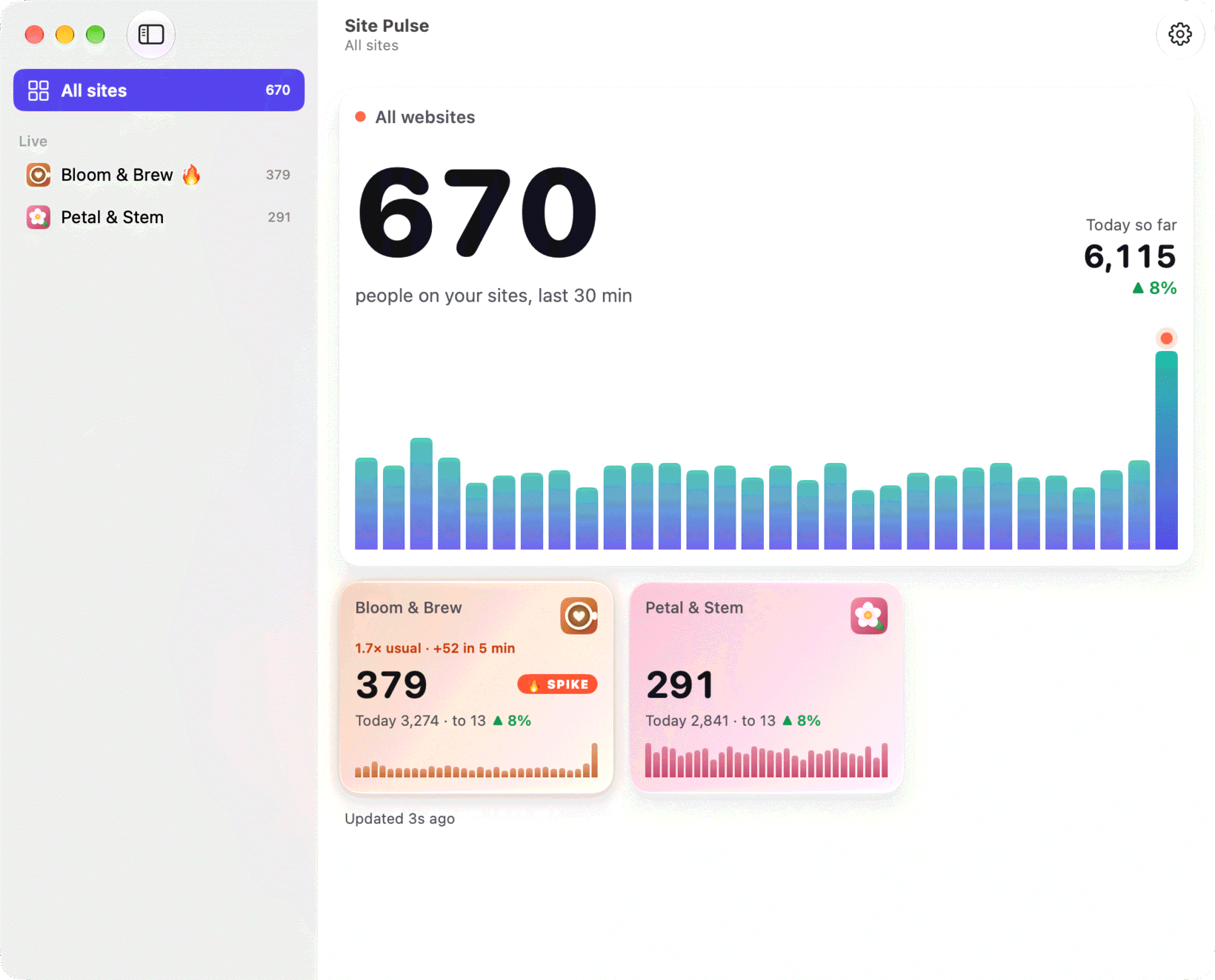
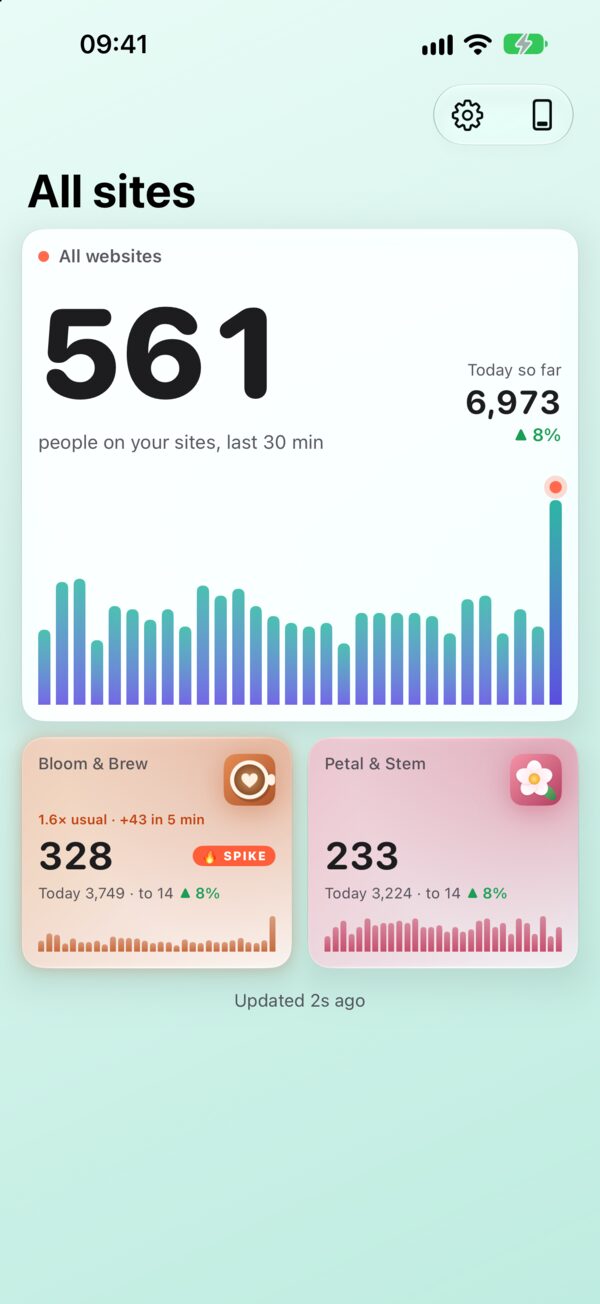
If you work on a Mac all day, the best place for your live visitors is the one spot you always see: the menu bar. No browser tab to keep open, no dashboard to remember. Just a number next to the clock that tells you, at a glance, how many people are on your websites right now.
This guide sets up Site Pulse for Mac, from the first sign-in to desktop widgets.
What you need
- A Mac with macOS 26 or later.
- A Google Analytics 4 property. Site Pulse reads GA4 only, not the older Universal Analytics.
- Site Pulse itself. It’s one universal purchase for iPhone, iPad and Mac, so if you already use it on your iPhone, the Mac app is included. You can join the TestFlight beta now.
Connect Google, or don’t
If you’ve already connected your Google accounts on an iPhone or iPad, there may be nothing to do. Your sign-ins are kept in the Keychain and travel through iCloud Keychain, and your site choices travel through iCloud, so the Mac starts with the same sites, names and colours.
Starting fresh on the Mac works the same way as anywhere else:
- Open Settings in Site Pulse and add a Google account. Site Pulse asks for read-only access to Analytics.
- Choose the GA4 properties you want to watch. Add more accounts if your sites live in different ones; there’s no limit on sites or accounts.
- Give each site a short name. Its colour comes from the website’s icon, or you can pick your own.
The menu bar at a glance
Site Pulse lives in the menu bar, with no Dock icon. It shows two things: the live total of people on all your sites, and a sparkline of the last 30 minutes, so you can see whether that number is climbing or settling.
Click the number for a popover dashboard with every site. From there, open any site to see where people are, the pages they’re reading, the devices they use and the events they trigger, plus how today compares with yesterday so far.
Prefer a real window? Choose Open in Window for a full window with a sidebar. If you always want it that way, set Site Pulse to show as a window by default.
Launch at login
The menu bar is most useful when you forget it’s there. Turn on Launch at login in Site Pulse’s settings, and it starts with your Mac every morning without you thinking about it.
While it runs, the live numbers refresh every minute while you’re looking at them and every five minutes when nothing is on screen. That keeps your Google quota comfortable. If you’re curious, each site’s quota is shown under Settings › Google limits.
Notice spikes without looking
When a site gets busier than usual, the number in the menu bar gives a little bounce. It’s enough to catch your eye without interrupting you.
If you want more than a bounce, turn on spike notifications (they’re off by default). You’ll get a banner with the site and the numbers, such as “3.3× usual · +155 in 5 min”. A spike means the last five minutes ran at 1.5 times the site’s usual for that hour or more, with at least ten more people than usual.
Add desktop widgets
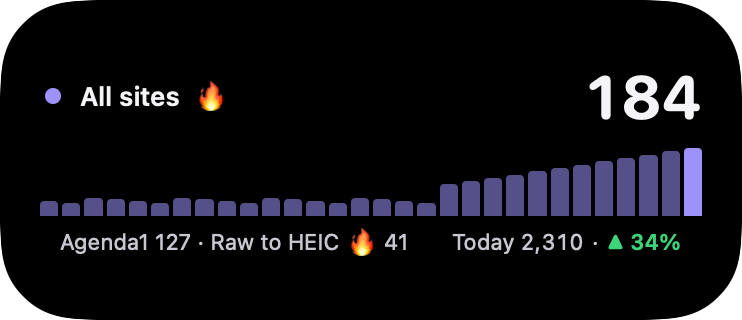
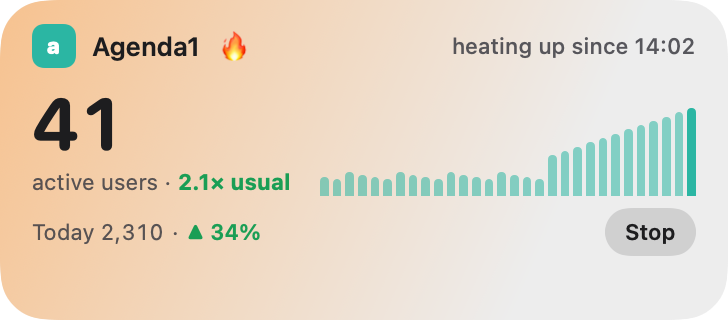
All nine Site Pulse widgets work on the Mac desktop. To add one, Control-click an empty part of the desktop, choose Edit Widgets, find Site Pulse and drag a widget into place. A few good starting points:
- Pulse (small): the people on your sites right now.
- Monthly report (large): the month’s total and daily bars, with top countries and sources.
- Sites wall (extra large): live now, the last 24 hours and your top sites, made for big screens.
Every widget shows its headline number for free; Site Pulse Pro adds the details, such as the 24-hour curve and the countries and sources. The widgets page shows all nine.
Privacy on the Mac
On the Mac, Site Pulse talks only to Google, never to a server of ours. Your sign-in stays in your Keychain, and the access it holds is read-only, so the app can look at your Analytics but never change it. Our explainer on why Site Pulse can only read your Analytics covers the details.
Questions
Does Site Pulse have a Dock icon?
No. It lives in the menu bar. You can open it as a normal window whenever you like, and choose to show it as a window by default.
Does the Mac app send my data anywhere?
No. On the Mac, Site Pulse talks only to Google Analytics, with read-only access, and keeps your sign-in in your Keychain.
Which macOS do I need?
macOS 26 or later.
 RawToHEIC
  MergeHDR
  Filters
  Photo Geotag
  Copyrighted
  Camera Grid
  Photo Tape